
- 📦 Not Happy with Your Purchase? No Problem!
- 🎬 First up, the video:
- 1. Remove Find My iPhone (FMI) / Factory Reset Protection (FRP) 📵
- 2. Factory Reset the Device 📱🔄
- 3. Clean The Phone 🧼
- 4. Pack Your Phone Properly 📦
- 5. Choose a Shipping Method That Covers the Full Value 📨
- 6. Send Us Proof of Postage and Refund Details 💸
- Summary
- ✔️ Handy-Dandy Checklist:
📦 Not Happy with Your Purchase? No Problem!
We get it—sometimes a phone just isn’t the right fit. If you’ve bought a device from us and realized it’s not your cup of tea, no worries! 😊 We’re here to make returns quick, simple, and hassle-free.
As long as your return meets our returns policy, we’ll issue you a full refund—no stress, no fuss.
To make the process crystal clear, we’ve provided three easy ways to follow along:
🎥 A step-by-step video
📖 Detailed written instructions within the Blog
✔️ A quick, fun checklist
Pick the one that works best for you, and let’s get started!
🎬 First up, the video:
1. Remove Find My iPhone (FMI) / Factory Reset Protection (FRP) 📵
Before you send your phone back, you must remove iCloud/Google accounts. If you don’t, the phone will still be locked to your account, making it unusable.
Removing Find My iPhone (FMI) – Apple Devices
From Another Device (Recommended Method)
If you don’t have access to the phone, you can remove FMI remotely:
- Go to iCloud.com and sign in.
- Click Find iPhone.
- Click All Devices and select the phone you’re returning.
- Click Erase iPhone (if the device is online, it will wipe immediately; if offline, it will erase when next connected to the internet).
- After it has been erased, click Remove from Account.
From the Phone Itself
You can also remove the FMI from the device itself, although we recommend doing it remotely.
- Go to Settings > [Your Name] > Find My > Find My iPhone.
- Toggle Find My iPhone off.
- Enter your Apple ID password when prompted.
How to Check FMI Has Been Removed
- Sign back into iCloud.com and check that the phone no longer appears in your list of devices.
- If it’s still there, it hasn’t been removed properly.
Removing Factory Reset Protection (FRP) – Android Devices
From Another Device (Google Account)
- Go to Google My Account.
- Click Security > Your Devices > Manage All Devices.
- Select the phone and Sign Out.
From the Phone Itself
- Go to Settings > Accounts & Backup > Manage Accounts.
- Tap your Google account.
- Select Remove Account (you may need to enter your device’s PIN).
How to Check FRP Has Been Removed
- Try restarting the phone and checking if it asks for a Google account login.
- If done correctly, the phone shouldn’t ask for any Google account details upon restarting.
- If it does, an account may still be linked, so try these steps again.
!! IMPORTANT: Some other brands, such as Samsung or Xiaomi, may have their own method of FRP removal. Make sure you’re using the correct method for your device as it may not be listed above.
If You Can’t Access the Phone
If the screen is broken or the phone won’t turn on, you still need to remove FMI/FRP remotely from another device (Phone, Computer, Laptop, etc.). If you can’t do this, write down your Apple ID/Google password and include it with the phone so we can wipe your device for you. We will not process your return if the phone is still locked.
!! IMPORTANT: The return process will take longer if you cannot wipe your phone and require us to do it. This means it’ll take longer for you to get your money back.
2. Factory Reset the Device 📱🔄
Once you’ve removed your account, erase the phone to remove all personal data.
How to Factory Reset an iPhone
- Go to Settings > General > Transfer or Reset iPhone.
- Tap Erase All Content and Settings.
- Confirm and enter your passcode if asked.
How to Factory Reset an Android Phone
- Go to Settings > System > Reset Options.
- Tap Erase All Data (Factory Reset).
- Confirm and enter your PIN if asked.
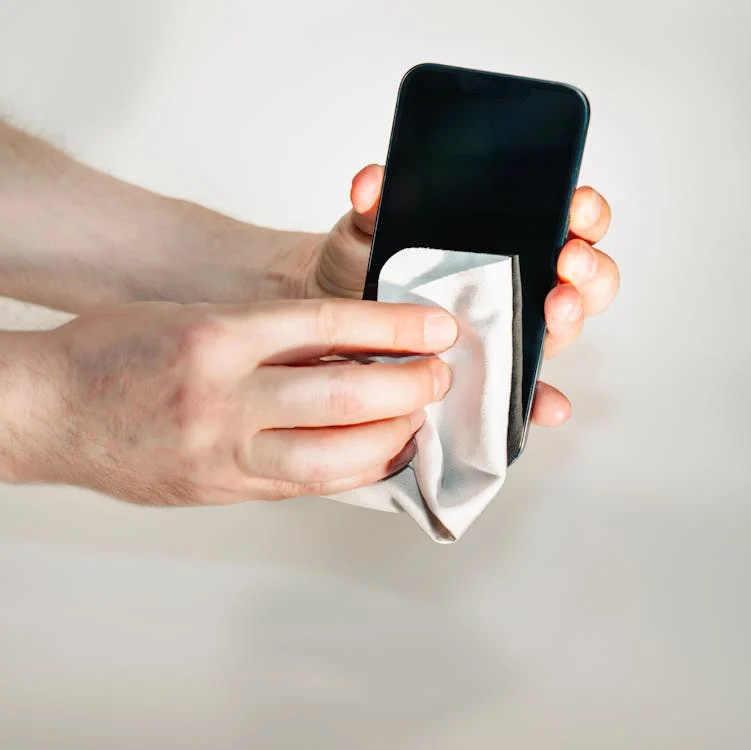
3. Clean The Phone 🧼
Please wipe down the phone before sending it back. This includes:
- Wipe down the screen and back—smudges and snack crumbs begone!
- Remove dust, fingerprints, and mystery grime (we won’t ask how it got there).
- Take off stickers, skins, and personal cases—unless you want us to admire your taste in unicorn decals.
A clean phone means a faster inspection and refund—and it spares us from dealing with a device that looks like it survived an apocalypse. Thanks for keeping it fresh! 😄
4. Pack Your Phone Properly 📦
- Fill out the return form included with your order (or download one from our website).
- Put the phone in a box or well-padded bag, not a flimsy envelope!
- Pack it securely—if you shake the box and hear it rattling, it is NOT packed well enough. Use bubble wrap or padding to protect it from damage.
- Seal the box properly—use strong tape to prevent it from opening in transit.
- Return to Sender—Return your device to us at TBPS Returns, Unit 9, Wednesfield Business Park, Waddensbrook Lane, Wolverhampton, WV11 3SF.
When you buy or trade in a device with us, we pack it securely to prevent damage. Each phone ships in a sturdy, sealed box with a padded plastic sleeve. Use similar packaging when returning a phone to keep it safe in transit and avoid unexpected issues.
💡 Check out our blog on Securely Packing Your Devices.
5. Choose a Shipping Method That Covers the Full Value 📨
Phones can get lost or damaged in transit. Use a shipping service that insures the full value of the device.
Recommended shipping options:
- Royal Mail Special Delivery (insured up to £750).
- Courier services with full-value insurance (DHL, DPD, etc.).
!! IMPORTANT: If you send it with no insurance and it gets lost, you won’t be reimbursed.
6. Send Us Proof of Postage and Refund Details 💸
Once you’ve shipped the phone:
- Email us the tracking number as proof of postage.
- Send us your Sort Code and Account Number so we can refund anything owed to you.
!! IMPORTANT: We will only issue a refund after we receive and assess the device.
Summary
✅ Remove FMI/FRP (if you don’t, we won’t process the return).
✅ Factory reset the phone (wipes all data).
✅ Clean the phone (please!).
✅ Pack securely (if it rattles, it’s not secure enough).
✅ Use insured shipping (or risk losing your refund).
✅ Send proof of postage and bank details (refunds happen after assessment).
By following these steps, you’ll get your return processed quickly and hassle-free.
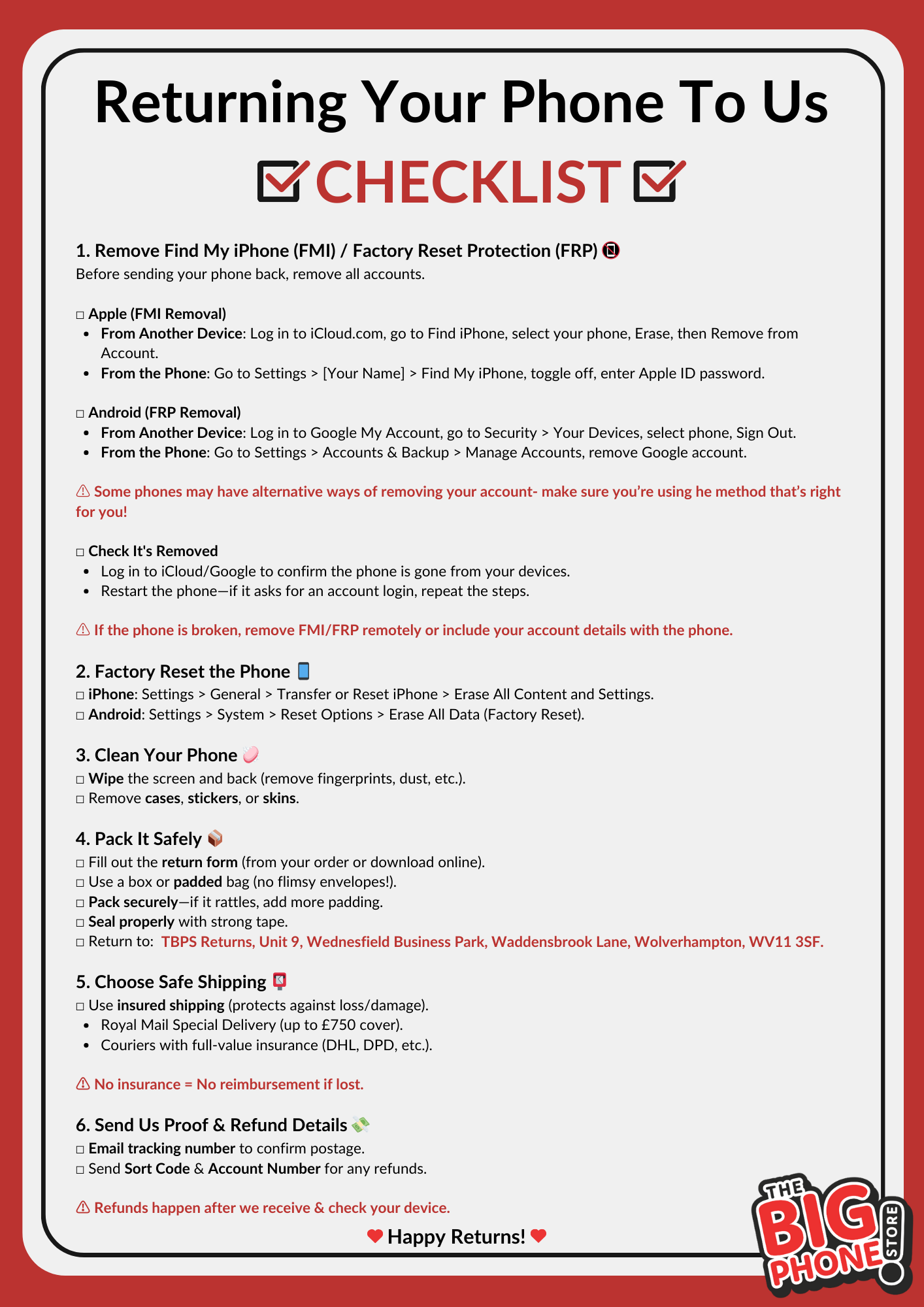
Still need a hand? Check out our full checklist below so you can easily go through the process step-by-step!
✔️ Handy-Dandy Checklist:
For even more info on similar topics, check out some of our other blogs:
How To: Securely Package Your Phone for Trade-In (and Returns!)
Trade-In Price: Why Honesty Matters
How Do I Prepare My Phone For Trade-In: The Ultimate Guide.
Or, read our full Returns page HERE