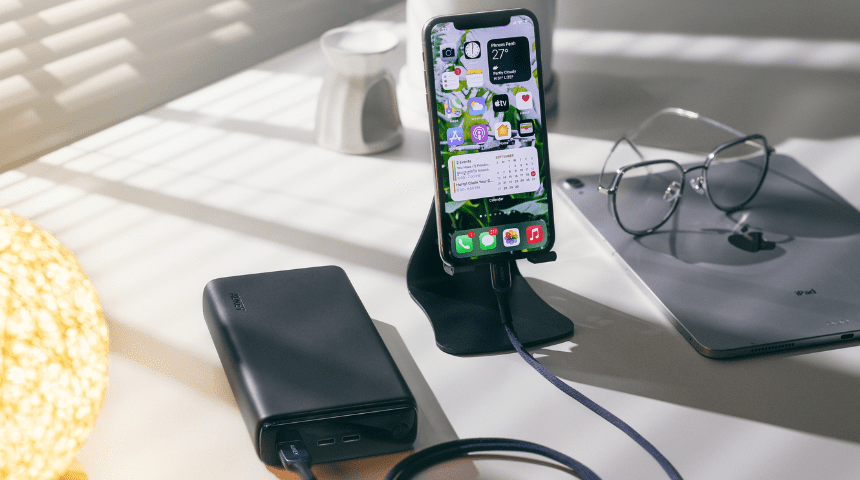
Worried your iPhone won’t last the day? You’re not alone. iPhone battery life can dip over time, and the settings menu doesn’t always make things clear. “Battery Health” vs “Battery Life” is confusing, too.
- iPhone Battery Life by Model (Real-World Use)
- Battery Health
- Battery Life
- Quick takeaway
- 1) Reduce Screen Drain
- 2) Optimise 5G and Mobile Data
- 3) Location Services, but smarter
- 4) Notifications that don’t drain
- 5) Background App Refresh
- 6) Mail fetch
- 7) Low Power Mode
- Habits That Add Hours
- iPhone Features to Keep (and When to Turn Off)
- Troubleshooting: If Your Battery Still Drops Fast
- iPhone Battery Life — Quick Fixes & Impact
iPhone Battery Life by Model (Real-World Use)
Based on mixed daily use: calls, browsing, video streaming, 5G & Wi-Fi.
| iPhone Model | Typical Daily Battery Life* | Notes | |||||||||||||||||||||
|---|---|---|---|---|---|---|---|---|---|---|---|---|---|---|---|---|---|---|---|---|---|---|---|
| iPhone 13 | All-day (7–9 hours screen time) | Highly efficient A15 Bionic chip | |||||||||||||||||||||
| iPhone 14 | All-day (7–9 hours) | Similar efficiency to iPhone 13 | |||||||||||||||||||||
| iPhone 15 | All-day+ (8–10 hours) | Improved efficiency and USB-C | |||||||||||||||||||||
| iPhone 15 Pro | All-day (7–9 hours) | ProMotion and camera use increase drain | |||||||||||||||||||||
| iPhone 15 Pro Max | 1.5–2 days | Best battery life in the 15 range | |||||||||||||||||||||
| iPhone 16 | All-day+ (8–10 hours)** | Efficiency gains expected from newer chipset |
| Fix | Where | Typical Impact |
|---|---|---|
| Auto‑Brightness + Dark Mode | Settings → Display & Brightness | Medium–High |
| Low Power Mode | Settings → Battery | High |
| Background App Refresh → Off/Wi‑Fi | Settings → General → Background App Refresh | Medium |
| Use 4G / 5G Auto in weak areas | Settings → Mobile Data → Voice & Data | Medium |
| Mail Fetch hourly / Manual | Settings → Mail → Accounts → Fetch New Data | Low–Medium |
| Location "While Using" | Settings → Privacy & Security → Location Services | Medium |
Impact is indicative. Results vary by model, signal, and daily use.
Buying refurbished? Good choice. At The Big Phone Store, devices are thoroughly tested, securely wiped, and graded for condition. Batteries meet our quality standard of 85% Battery Health and, if a device’s battery doesn’t, we replace it. That means strong Battery Health and dependable battery life from day one.
- Browse Refurbished iPhones.
- Explore our Apple brand page for models and deals.
Frequently Asked Questions (FAQ's)
Not usually. With Optimised Battery Charging on, iOS manages the final 20% near your wake time. Heat is the bigger risk, so keep your phone ventilated.
Constantly force-quitting can use more power. Let iOS manage apps. Only close ones that misbehave.
No, but it drains fast and can raise temperature. Lower brightness or use Auto-Brightness.
In most cases, Pro Max models have the best battery life because they include the largest battery capacity. For everyday users, Pro Max iPhones can last up to 1.5–2 days with mixed use, while standard and Pro models usually last a full day with the right settings.
To check your iPhone’s battery performance:
- Go to Settings → Battery
- View usage under Last 24 Hours or Last 10 Days
- Tap Battery Health & Charging to see maximum capacity
This shows both how long your battery lasts daily and its overall health.
To preserve battery health over time:
- Avoid frequent 0–100% charging
- Keep charge levels between 20–80% where possible
- Avoid heat while charging
- Use quality chargers and cables
- Leave Optimised Battery Charging turned on
These habits slow battery ageing and help maintain long-term performance.
Conclusion
Battery Health shows the size of your battery’s tank. Battery Life shows how long today’s charge lasts. Tweak your settings, adopt a few habits, and your iPhone should comfortably make it through the day. If Battery Health is under 80%, a replacement restores performance.
For reliable devices with strong batteries, The Big Phone Store has you covered. If you’re still stuck, our team can help diagnose the issue and suggest the best fix.
Useful Links:
- Browse our range of refurbished iPhones.
- Still unsure? Contact The Big Phone Store for friendly, expert help.