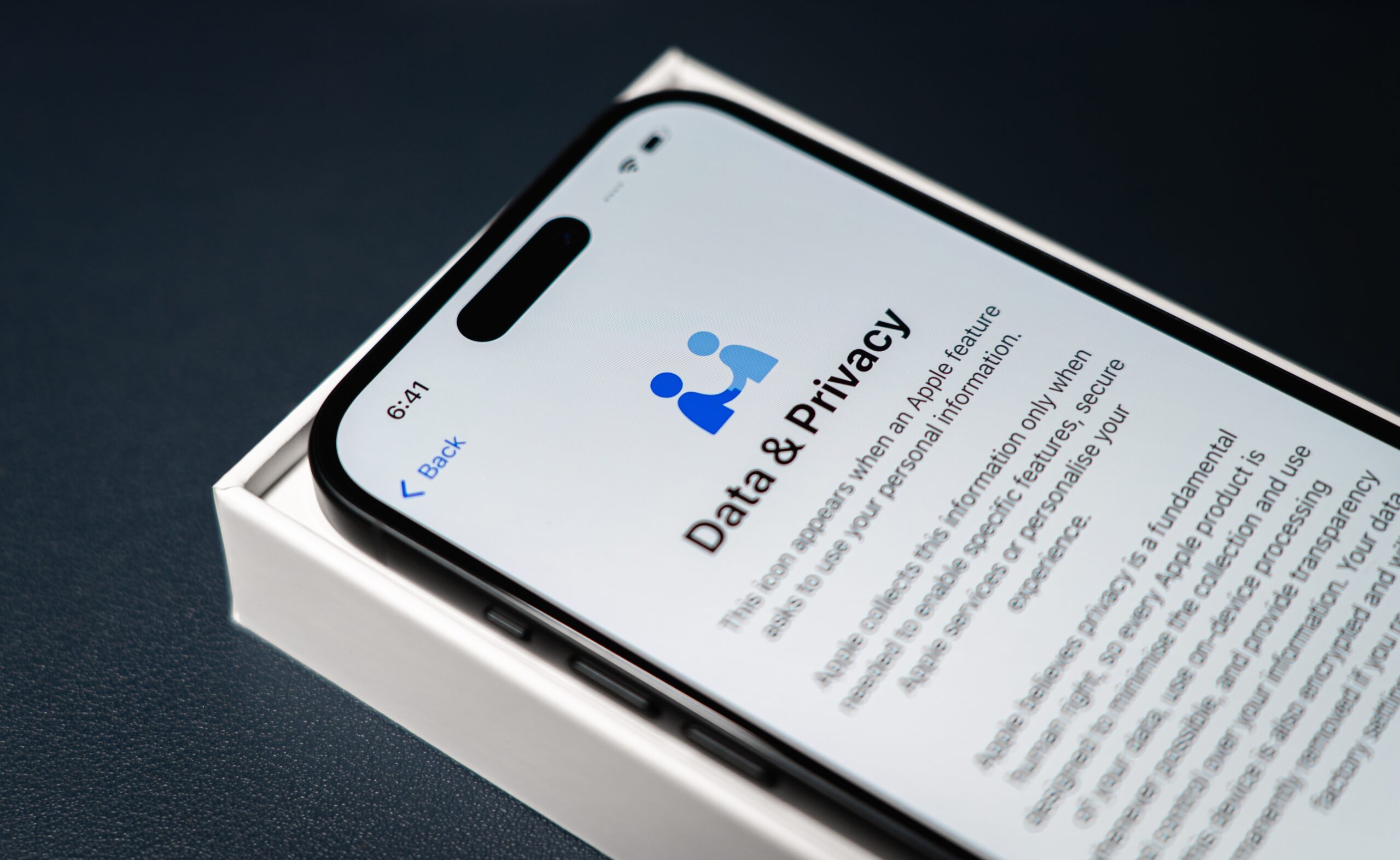
3 Quick iPhone Privacy Tips Anyone Can Do
Worried your iPhone is sharing more than you’d like? You’re not alone. Privacy settings can feel hidden, wordy, and weirdly scattered.
The good news: a few small switches make a big difference. No tech skills needed. This guide takes about five minutes, and you’ll keep everything working as normal.
At The Big Phone Store, we’ve set up thousands of refurbished iPhones—so we know the easy wins. Follow the steps below for instant improvements, plus some optional extras that are worth the tap.
Tip 1: Switch Off “Help Apple Improve”
These settings share diagnostics and voice samples. Most people don’t need them on.
Do this:
Open Settings
Tap Privacy & Security
Tap Analytics & Improvements
Turn Share iPhone Analytics Off
Turn Improve Siri & Dictation Off
If you see iCloud Analytics, turn that Off too
Why this helps: You reduce background data being sent from your phone. Your iPhone still works the same.
Small win: Siri still works. You’re simply not sending extra samples for training.
Tip 2: Stop Apps from Tracking You
Limit how apps follow you across other apps and websites.
Do this:
Open Settings
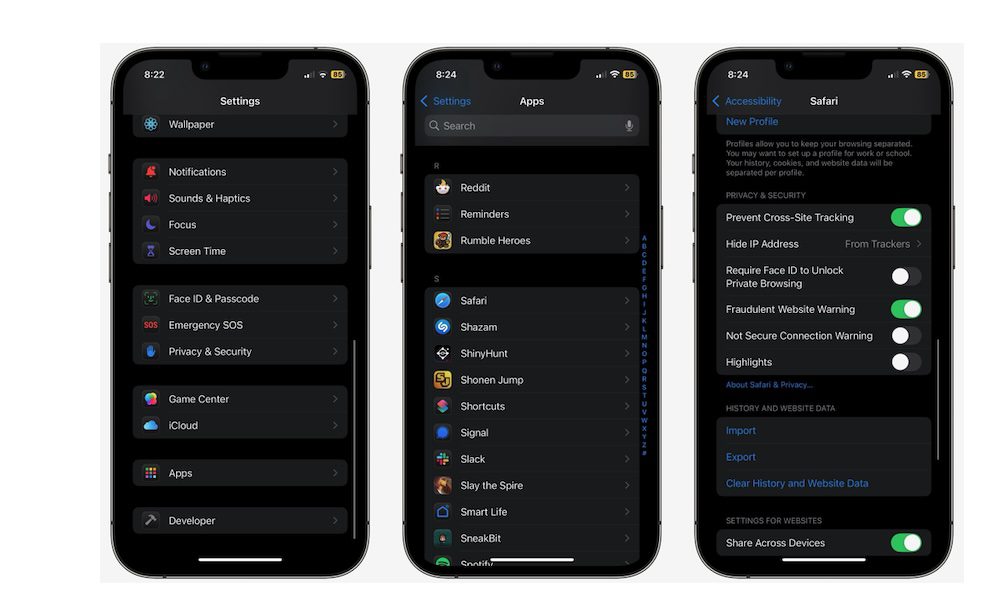
Tap Privacy & Security → Tracking
Turn Allow Apps to Request to Track Off
Prefer to choose per app? Leave it On and switch tracking Off for individual apps
Safari quick check:
Settings → Safari
Keep Prevent Cross-Site Tracking On
Review Search Engine Suggestions and Safari Suggestions and turn them Off if you don’t want query sharing
Why this helps: You cut down the targeted profiles built about you. Result: fewer targeted ads and less data sharing.
Small win: Ads don’t vanish, but they know less about you.
| Approach | Best for | Pros | Cons |
|---|---|---|---|
| Global Off | Quick privacy upgrade | One switch, consistent result | Less granular control |
| Per-App | Power tinkerers | Keep tracking only where you truly want it | Takes a few extra taps |
Tip 3: Apple Intelligence Report (on supported iPhones)
This is a log, not your messages. It shows when your phone used Apple’s servers for certain AI tasks. If you don’t see this menu, skip it.
Do this:
Settings → Privacy & Security → Apple Intelligence Report
Set it to Off (or leave On if you like seeing the log)
Why this helps: Less background reporting and more peace of mind.
Small win: You can turn it back on any time to check activity.
Nice Extras (Optional, but Worth It)
Limit Photo Access
When an app asks for Photos, choose Selected Photos.
Change later in Settings → Privacy & Security → Photos.
Why: Apps only see the pictures you allow.
Hide Message Previews
Settings → Notifications → Show Previews → When Unlocked.
Why: Stops lock-screen peeking from others. Your texts aren’t readable when the phone is locked.
Mail Privacy Protection
Settings → Mail → Privacy Protection → Protect Mail Activity.
Why: Blocks tracking pixels and hides your IP from marketing emails.
Common Questions
Will these settings break apps?
No. Core features still work. A few apps may ask for permission again—you can grant only what’s needed.
Do I need to do this after every iOS update?
Not usually, but it’s smart to recheck key toggles after a major update.
Is Private Browsing enough?
Private tabs help locally (no history on your device). They don’t stop all tracking on the web. Keep Prevent Cross-Site Tracking On as well.
Selling or Trading In with The Big Phone Store?
Before you post your phone:
Back up (iCloud or computer)
Turn Find My Off (removes Activation Lock)
Erase All Content and Settings
Remove your SIM or eSIM if you’re moving network
Then get an instant quote, a free tracked pack, and fast payment (same day if it arrives before 12:00 Mon–Fri). No fees. No back-and-forth. You get what you were quoted when the description matches.
Editor notes for internal linking:
Link to our brand landing page: Apple iPhone range.
Link to a product page: e.g., Refurbished iPhone 13 or iPhone 14.
Link to another blog: e.g., How to wipe your iPhone safely before selling.
Conclusion
Privacy doesn’t have to be complicated. Turn off unnecessary analytics, block cross-app tracking, and keep an eye on Apple Intelligence logs if your model supports them.
Add the optional extras for tighter control without fuss.
If you’re upgrading, The Big Phone Store makes trade-ins easy and fast—so you can lock down your privacy and level up your phone in the same afternoon.
- Browse our range of refurbished iPhones .
- Check out our blog on whether refurbished iPhones can be trusted for security and privacy .
- Still unsure? Contact The Big Phone Store team —we’re happy to help.