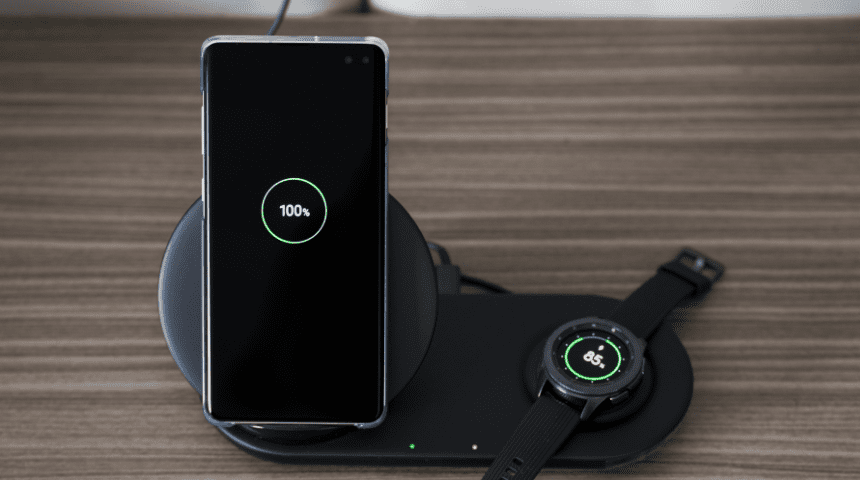
Worried your Samsung battery drains too fast? You’re not alone. Big screens, social apps, and constant notifications can eat through charge quickly, and it’s frustrating. The good news: a few simple tweaks can make a huge difference. In this guide, we’ll show you clear, easy steps to stretch your Galaxy’s battery life without turning your phone into a brick.
At The Big Phone Store, we test Samsung devices every day. These are the practical tips we use ourselves, written with no jargon and quick actions you can follow right now.
Battery life is the run time you get from a single charge, so how many hours your phone lasts today.
Battery health is your battery’s long-term condition. How much of its original capacity it can still hold after months or years. As health declines, even perfect settings can’t deliver the same life.
Quick ways to check on Samsung:
Battery life now: Settings → Battery → Usage since last charge. See which apps and features used the most.
Battery health status: Samsung doesn’t show an exact percentage in Settings. Use the Samsung Members app → Support → Phone diagnostics → Battery status. You’ll see a clear rating like Good or Weak. If it’s weak, a replacement battery can restore performance.
Rule of thumb:
If your battery life suddenly tanks, tweak settings and check for runaway apps.
If life has slowly worsened over many months and the phone heats while charging, that’s health. Consider a replacement.

| Term | What it means | Fix fast | Fix long-term |
|---|---|---|---|
| Battery life | Hours you get today from a single charge. | Power Saving, lower brightness, switch to 60Hz. | — |
| Battery health | Long-term condition — how much of the original capacity remains. | — | Charge 20–85%, keep it cool, enable Battery protection, consider replacement if weak. |
Tip: Check health in Samsung Members → Support → Phone diagnostics → Battery.

- Turn on Power Saving: Settings → Battery → Power saving. Start with the standard mode.
- Lower Screen Brightness: Use Auto brightness or drop it a notch.
- Switch to Dark Mode: Settings → Display → Dark mode. OLED screens use less power with dark backgrounds.
- Close Power-Hungry Apps: Recent apps → Close all.
- Toggle Off What You Don’t Need: Bluetooth, Mobile hotspot, NFC, GPS when not in use.
Tip: Add Power saving and Dark mode to your Quick Panel for one-tap control.

- 1) Screen: Your Biggest Battery User
- 2) Apps: Stop the Silent Drain
- 3) Network: Smart Connections
- Adaptive Battery & Optimisation
- Battery Protection (Charge to 85%)
- Power Saving Modes that Don’t Hurt
- Bonus Hacks Most People Miss
- Common Problems (and Fast Fixes)
- Frequently Asked Questions (FAQ's)
- Conclusion
- Useful Links
1) Screen: Your Biggest Battery User
Adaptive Brightness: Let your phone manage brightness smartly.
Refresh Rate: Settings → Display → Motion smoothness. “Adaptive” is smooth but uses more power; “Standard (60Hz)” saves battery.
Screen Timeout: Set to 30–60 seconds.
Always On Display: Switch to “Tap to show” or turn it off.
2) Apps: Stop the Silent Drain
Sleeping Apps: Settings → Battery → Background usage limits. Add apps you rarely use to Sleeping or Deep sleeping.
Optimise Battery Usage: Settings → Apps → choose app → Battery → Optimised.
Uninstall or Disable Bloat: If you don’t use it, lose it.
Notification Control: Fewer pings = fewer wake-ups. Settings → Notifications.


3) Network: Smart Connections
Wi‑Fi Over Mobile Data: Wi‑Fi is usually more efficient.
5G Settings: If you’re in a weak 5G area, switching to 4G/LTE can help.
Wi‑Fi Calling: In low-signal homes, Wi‑Fi Calling can reduce battery strain.

Adaptive Battery & Optimisation
Go to Settings → Battery → Battery settings.
Turn on Adaptive battery so Android limits rarely used apps.
Tap Device care → Optimise to fix small issues in one go.
Battery Protection (Charge to 85%)
Settings → Battery → Battery protection → Set to Maximum (limits to 85%).
This protects long-term battery health. You’ll lose a little top-end runtime today, but the battery ages slower.
Power Saving Modes that Don’t Hurt
Use Power saving with Limit apps and Home screen OFF, but Limit CPU speed and Decrease brightness ON.
For travel days, try Ultra power saving to stretch those last 10%.

Avoid 0% to 100% Daily: Aim for 20%–85% where possible.
Fast Charging, Smartly: Great in a hurry. For overnight charges, standard speed is gentler.
Keep It Cool: Heat is the enemy. Don’t charge under a pillow or on a hot dashboard.
Wireless vs Cable: Wireless is convenient but slightly less efficient. Use cable when you need maximum speed and efficiency.
| Tweak | Battery Impact | Where to Find |
|---|---|---|
| Power Saving Quick win | High | Settings → Battery |
| Lower refresh rate to 60Hz | High | Settings → Display → Motion smoothness |
| Dark mode | Medium–High | Settings → Display |
| Battery protection (85%) | Long-term health | Settings → Battery |
| Sleeping apps | Medium | Settings → Battery → Background usage limits |
| Auto brightness | Medium | Settings → Display |
| Turn off AOD | Medium | Settings → Lock screen |

Bonus Hacks Most People Miss
Bixby Routines for Battery:
Create a routine: When battery < 25% → Then turn on Power saving, lower brightness, and turn off 5G.Location Permissions:
Set most apps to “Allow only while using”. Avoid “Allow all the time”.Wallpaper & Widgets:
Use a darker wallpaper. Remove live wallpapers and unused widgets.Sync Sensibly:
Email and cloud apps can sync less often. In each app, set longer sync intervals.Update Software:
Samsung and Google push battery fixes. Keep both the system and apps up to date.
Common Problems (and Fast Fixes)
Phone gets hot and drains fast
Remove case while charging.
Check for a runaway app: Settings → Battery → View details. Uninstall or force stop.
Battery drops overnight
Turn on Airplane mode if you don’t need calls.
Move chat or social apps to Sleeping.
Poor signal at home
Enable Wi‑Fi Calling.
Use a reliable router position or a mesh booster.

Frequently Asked Questions (FAQ's)
Yes, on OLED screens like most Samsung phones. Black pixels use less power.
Not “bad”, but using Battery protection (85%) and keeping the phone cool is better for long-term battery health.
Not natively in Settings. Use Samsung Members → Diagnostics → Battery for a health rating, or speak to a repair specialist for a diagnostic and potential replacement.
Conclusion
You don’t need advanced tricks to get great Samsung battery life. Tame the screen, control background apps, use smart power modes, and charge with care. Understand the difference between battery life (today’s hours) and battery health (long-term capacity) to pick the right fix. Do the quick wins now, then set up a couple of routines — and enjoy more hours from every charge.
If you’re still not happy with your battery, The Big Phone Store can help with expert advice, repairs, and great value refurbished Samsung phones.
Useful Links
Browse our range of refurbished Samsung phones.
Still unsure? Contact The Big Phone Store and our team will help you squeeze every minute from your battery.